

check

check

check

check

check

check
Connecting a limit switch to an Arduino is a fundamental skill for hobbyists and engineers working on automation, robotics, or safety mechanisms. A limit switch is a simple electromechanical device that detects the presence or absence of an object, often used to define the boundaries of motion in a system. By integrating it with an Arduino, you can create projects that stop motors, trigger alarms, or change operational states with high precision. This guide walks through the process step-by-step, ensuring reliable and effective implementation.
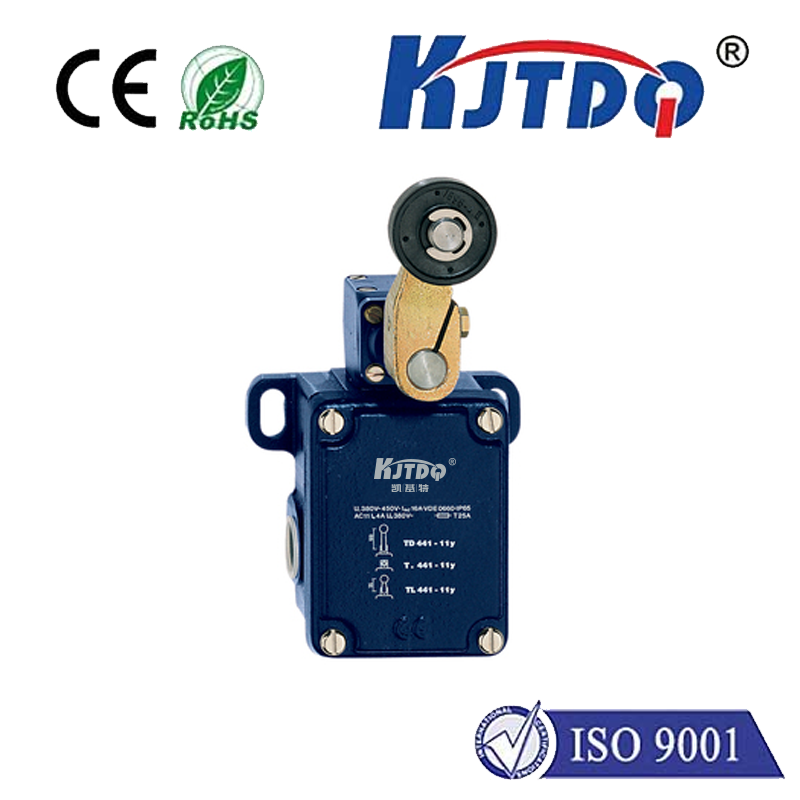
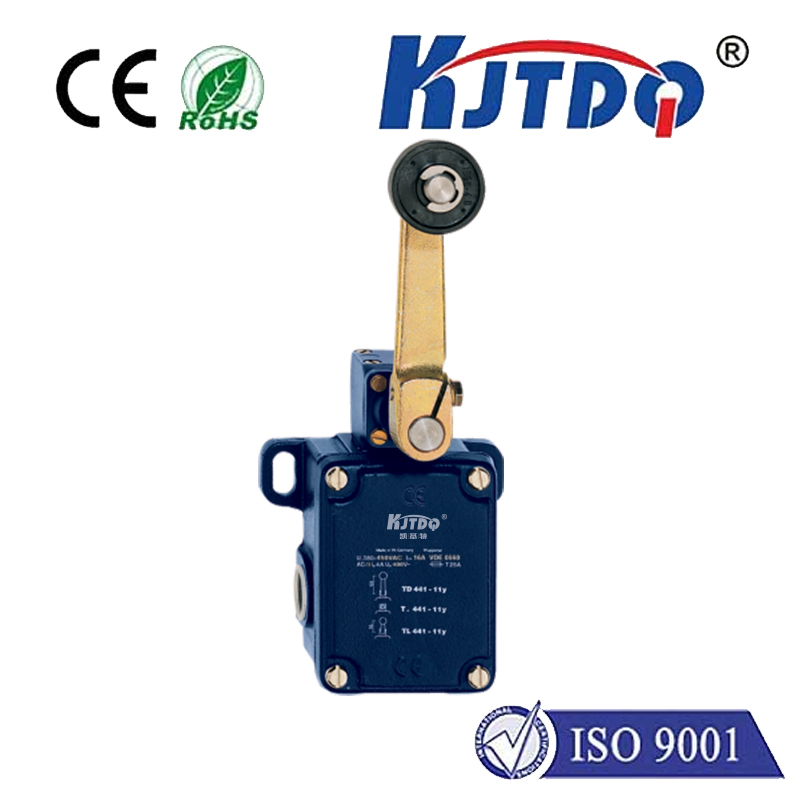
First, gather the necessary components: an Arduino board (such as Uno or Nano), a limit switch (normally open or normally closed types), a 10k ohm resistor, jumper wires, and a breadboard for prototyping. Limit switches typically have three terminals: common (COM), normally open (NO), and normally closed (NC). For basic detection, using the COM and NO terminals is common, as the switch closes the circuit when activated. Ensure the Arduino is powered off during connections to prevent short circuits.
Start by wiring the limit switch to the Arduino. Connect one terminal of the switch (e.g., COM) to the 5V pin on the Arduino. Attach the other terminal (e.g., NO) to a digital input pin, such as pin 2, through a pull-down resistor. The 10k ohm resistor should bridge this input pin to ground, stabilizing the signal and preventing floating values that cause erratic readings. This setup ensures the pin reads LOW when the switch is open and HIGH when closed, providing clear digital input. Double-check connections to avoid loose wires, which are a frequent source of errors.
Next, write the Arduino code to read the switch state. Open the Arduino IDE and create a new sketch. Define the pin connected to the switch as an input in the setup function usingpinMode(pin, INPUT). In the loop function, usedigitalRead(pin) to monitor the switch. For instance, if the switch activates a motor stop, you can program an output pin to control a relay or motor driver based on the input. Include a small delay withdelay(10) to debounce the switch, reducing noise from mechanical contacts. Testing with the serial monitor—printing values when the switch is pressed—helps verify functionality before integrating into larger projects.
Consider practical applications to enhance your projects. In a 3D printer, limit switches home the print head to a reference position, ensuring accurate layering. For a garage door opener, they prevent over-travel by cutting power when fully open or closed. In industrial settings, they safeguard machinery by halting operations if a safety guard is removed. The Arduino’s flexibility allows pairing with sensors like encoders or displays for feedback, enabling complex systems like automated curtains or CNC machines. Always prioritize safety: use switches rated for your voltage and current, and enclose circuits in protective casings to prevent accidents.
Troubleshooting is key to success. If the Arduino doesn’t detect switch presses, check wiring with a multimeter for continuity. Ensure the resistor is properly connected to ground, and verify the code uses the correct pin number. Mechanical wear can affect switches over time, so opt for durable models in high-use scenarios. For advanced users, explore interrupts on the Arduino for immediate response, or combine multiple switches for multi-axis control. Online communities and forums offer support, with shared schematics accelerating learning.
In summary, connecting a limit switch to Arduino is straightforward with careful wiring and coding. It opens doors to automated solutions, from simple hobbyist tools to robust industrial controls. By mastering this integration, you can build systems that respond accurately to physical limits, enhancing both functionality and safety. Start with a basic prototype, experiment with different switch types, and gradually scale up to tackle more ambitious engineering challenges.