inductive proximity sensor arduino
- time:2025-07-03 03:55:07
- Click:0
Unlock Non-Contact Metal Detection: Your Guide to Inductive Proximity Sensors with Arduino
Imagine a factory floor humming with activity. Robotic arms weld car frames, conveyor belts whisk components, and assembly lines hum. A critical question arises: How do these machines know precisely when a metal part arrives in position for the next operation, without physically touching it? The answer often lies in a remarkably reliable and rugged technology: inductive proximity sensors. Pairing these sensors with the versatile Arduino platform opens a world of possibilities for makers, engineers, and industrial applications, enabling precise, contactless metal detection with surprising ease. Forget clumsy mechanical switches; welcome to the realm of non-contact sensing.
Understanding the Inductive Sensing Principle
Unlike sensors that detect light (photoelectric) or all materials (capacitive), inductive proximity sensors have a specific specialty: ferrous and non-ferrous metals. Their magic stems from electromagnetic induction.
Here’s the core working principle:

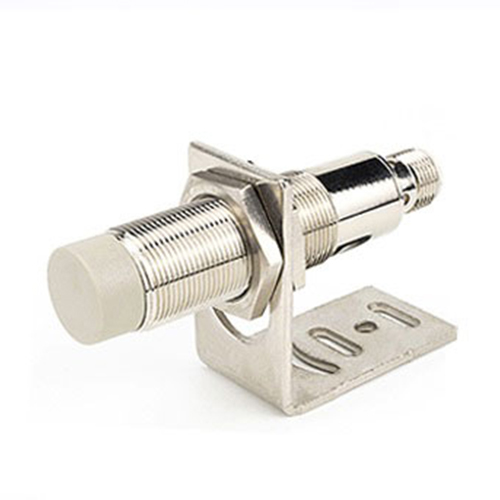
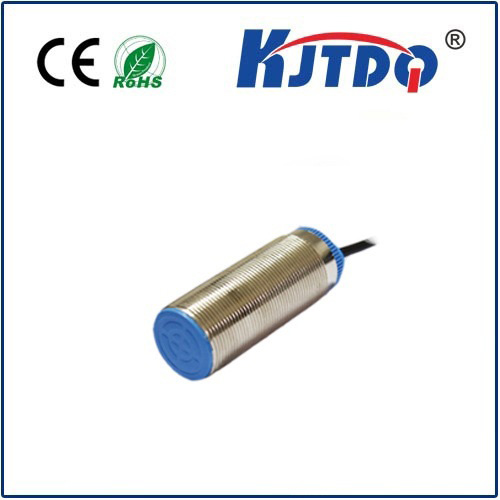
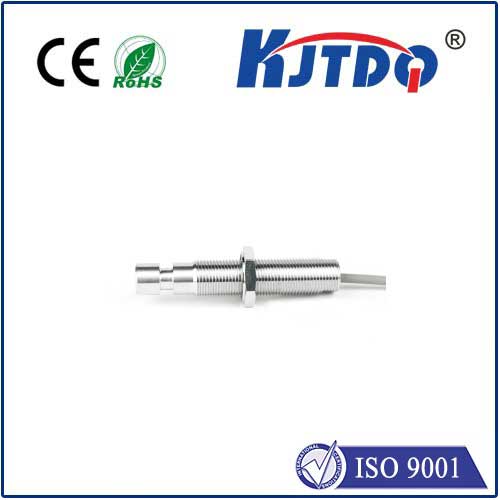
- Internal Coil & Oscillator: Inside the sensor’s face (typically plastic, ceramic, or metal), a coil of wire is fed by an electronic oscillator, generating a high-frequency oscillating electromagnetic field.
- Field Interaction: When a conductive metal target enters this field, it disrupts the field lines. This interaction induces tiny circulating electrical currents within the metal itself, known as Eddy currents.
- Energy Loss Detection: The generation of Eddy currents causes a measurable loss of energy within the sensor’s oscillator circuit.
- Signal Processing: The sensor’s internal electronics detect this energy loss or the change in oscillation amplitude.
- Output Switch: Once the energy loss surpasses a predefined threshold (indicating the target is close enough), the sensor triggers its output. This output is typically a simple digital switch – either ON (target present) or OFF (target absent).
This entire process happens without any physical contact, making inductive sensors incredibly durable, resistant to dirt, dust, oils, and vibration – perfect for harsh industrial environments or messy maker projects. Their sensing range depends on the sensor size and the specific metal, usually ranging from a few millimeters up to several centimeters.
Bridging the Gap: Wiring Inductive Sensors to Arduino
The beauty of modern industrial inductive sensors is their standardized wiring, typically following a 3-wire configuration. This makes connecting them to an Arduino straightforward:
- Wiring the Basics:
- Brown Wire: Connect to the Arduino’s 5V or your external positive power supply (common for sensors requiring 6-36V DC, but check your sensor’s specs! Many 3-wire sensors do run on 5V logic levels).
- Blue Wire: Connect to Arduino GND (Ground).
- Black (or sometimes White) Wire: This is the signal output wire. Connect it directly to one of the Arduino’s digital input pins (e.g., D2, D3, D4…).
- Considerations:
- Voltage Compatibility: This is crucial! While many common 3-wire DC inductive sensors are rated for 10-30V DC but work reliably at 5V for Arduino use (confirm the “Minimum Operating Voltage” in your sensor’s datasheet), some require higher voltage. Always check your specific sensor’s datasheet for its voltage range. If it needs more than 5V (e.g., 12V or 24V), you must power it from an external power supply matching that voltage. Connect the external power supply’s positive to Brown, its negative to both the sensor’s Blue wire and Arduino GND (to establish a common ground). The sensor’s output wire (Black/White) can still connect directly to the Arduino digital pin if the sensor states its output is “NPN Open Collector” or specifies it’s compatible with 5V logic levels.
- NPN vs PNP: Industrial sensors come in two main output types: NPN (Sinking) and PNP (Sourcing). For direct connection to Arduino digital inputs, PNP sensors are generally simpler and more common as they provide a positive voltage on the signal wire when active. Ensure you know which type you have (often marked on the sensor). NPN sensors can be used but require a slightly different wiring approach (like using a pull-up resistor).
- Sensor Polarity: Always double-check the wiring diagram provided with your sensor. While Brown = +V, Blue = GND is standard, the output wire color can vary (Black or White are common).
The Arduino Code: Simple & Effective
Reading the state of an inductive proximity sensor with Arduino is incredibly simple. It boils down to reading a digital input pin, just like you would a push button. Here’s a fundamental example:
const int sensorPin = 2; // Define the pin connected to the sensor's output wire
void setup() {
Serial.begin(9600);        // Initialize serial communication
pinMode(sensorPin, INPUT); // Set the sensor pin as an INPUT
}
void loop() {
int sensorState = digitalRead(sensorPin); // Read the state of the sensor pin
if (sensorState == HIGH) {
Serial.println("Target Detected!"); // Output HIGH usually means target present (PNP sensor)
// Add your action here: Turn on an LED, activate a relay, stop a motor, etc.
} else {
Serial.println("No Target");
// Add action for no target
}
delay(100); // Small delay between readings for stability & readability
}
Key Code Explanation:
pinMode(sensorPin, INPUT): Configures the digital pin solely for reading the sensor’s signal.digitalRead(sensorPin): Reads the voltage on the designated pin.
- For a PNP sensor:
HIGH (typically 5V or close) indicates a metal target is within range (sensor active). LOW (0V) indicates no target.
- For an NPN sensor (typically wired with a pull-up resistor):
LOW often indicates target present, HIGH indicates no target. Adjust the if statement logic accordingly! Always test and verify.
- Actions: Replace the
Serial.println() statements with your desired actions: control LEDs, relays, motors, servos, send signals over serial/USB, or trigger events in a larger program.
Practical Applications: Where Arduino & Inductive Sensors Shine
The combination unlocks numerous possibilities:
- Position Sensing: Detect the presence/absence of metal parts on a conveyor belt, confirming a component is in place before starting a robotic arm cycle.
- End-Stop Detection: Create robust limits for linear slides or CNC machines using metal flags, replacing fragile microswitches.
- Revolution Counting: Detect the passing of metal teeth on a gear or sprocket to measure rotational speed (RPM).
- Object Counting: Count metal cans, bolts, or other items moving past a point on a production or sorting line.
- Level Detection: Monitor the level of metal pellets or shavings in a bin (requires specific mounting).
- Security: Conceal sensors behind non-metal surfaces to detect unauthorized opening of doors or cabinets with metal components.
- Animatronics & Props: Trigger sound effects or movements when a metal object (weapon, token) is brought near a hidden sensor.
Optimizing Performance: Tips for Success
- Mounting Matters: The sensor’s electromagnetic field radiates primarily from its front face. Mount it so the target